

To start the WebBuilder follow the instructions in the video. To log into your portal, head to https://portal.breeze.marketing
- Head to the Breeze Marketing Protal and create an account or log in.
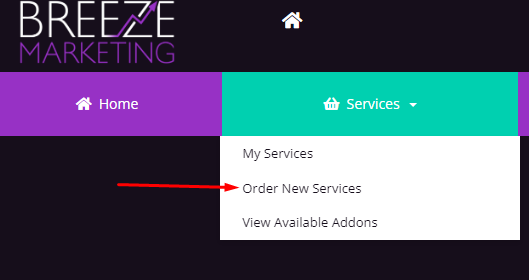
- Then click this link Store > WebBuilder or when logged in, in the menu hover over Services, Click Order New Services, and find the Breeze WebBuilder Service.
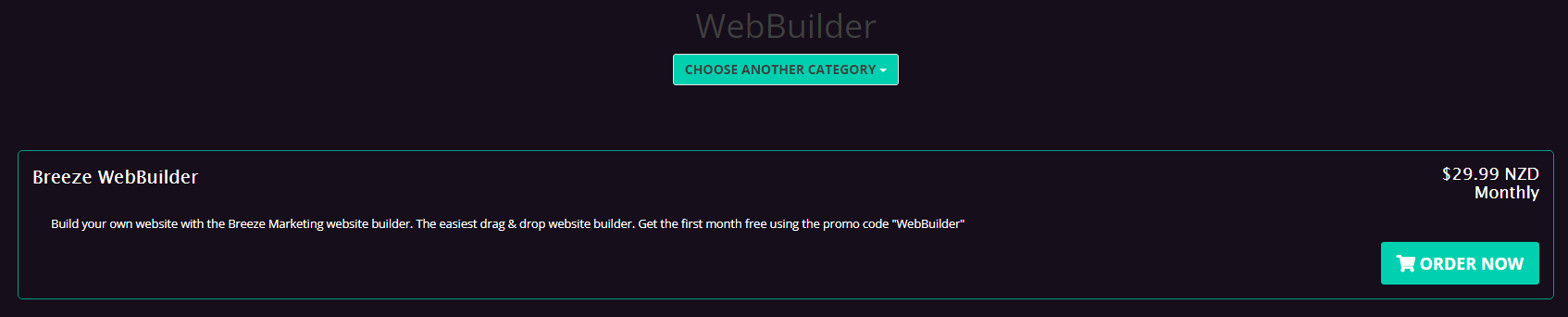
- Click Order Now
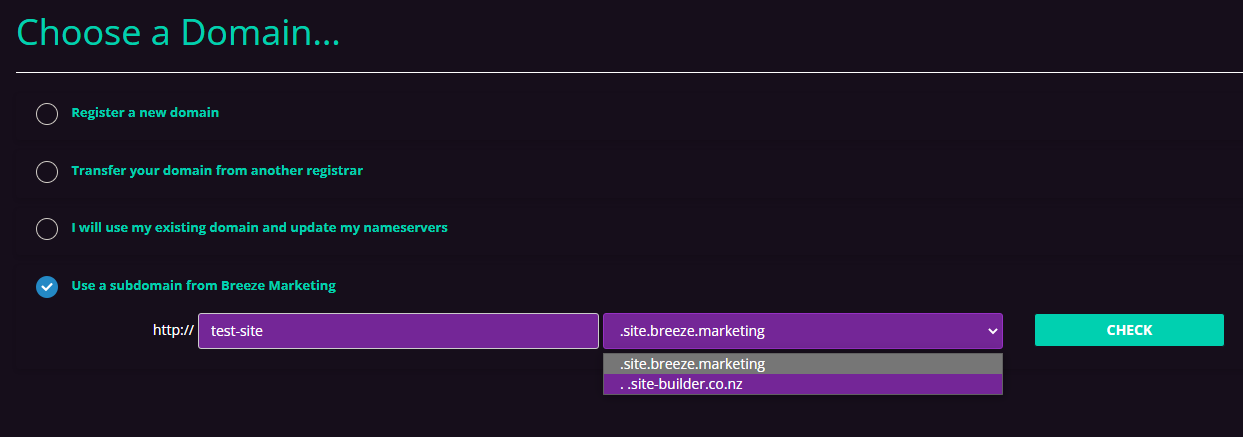
- Next, you can register your domain name, transfer your current one, use your existing one or use a free subdomain. You can start with a free domain and upgrade it down the track.
- Register a Domain Name - Register your own www.mydomain.co.nz. (Don't worry, nobody will be able to see your Website until you choose to do so)
- Transfer Domain Name - If you have registered your domain elsewhere, you can bring it over using this option. You will need a domain key or UDAI code to complete this. (If you are currently using emails with your domain me@yourdomain.co.nz, these will need to be reconfigured after picking this option. If you're unsure, contact us and we can do this for you.)
- Use Existing Domain - Choose this option if you currently have a domain registered elsewhere and would like to point it to your WebBuilder. (You will need to setup 2 A Records on your domain, one for www.yoursite.co.nz and yoursite.co.nz pointing to 34.116.118.190)
- Use a Free Subdomain - If you just want to trial the WebBuilder you can choose a free subdomain. You can add a domain at a later date or just use this one for your website.
- You will then see a confirmation screen with your order details with the monthly amount to pay, after your free trial.
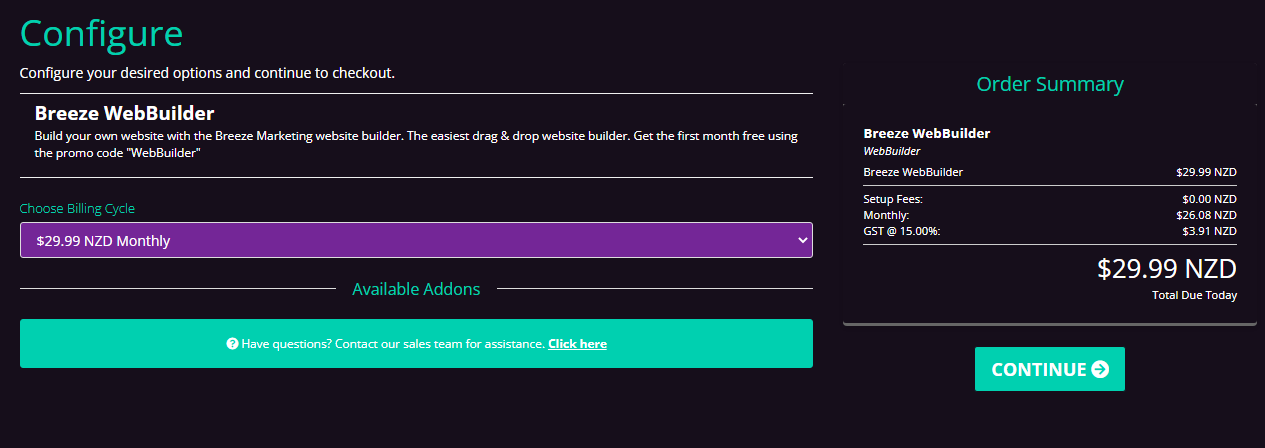
- Click Continue!
- You will see the final checkout screen, if the free trial code was not activated, be sure to enter the code WebBuilder.
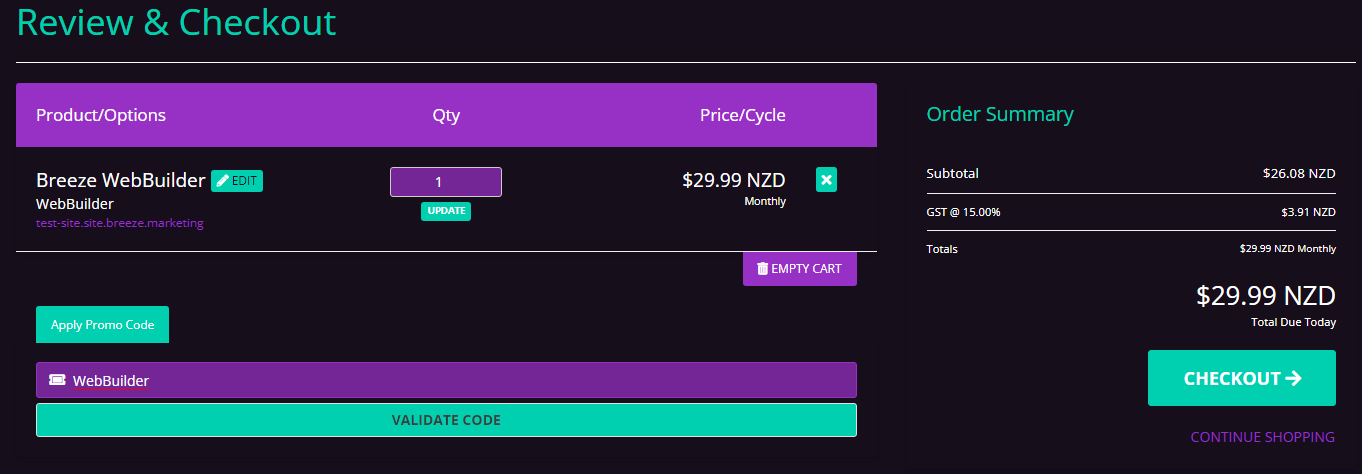
Your Total Due Today should show $0 - Click Checkout.
- Choose or enter your payment details, if you do not want to continue after your trial, you can cancel at anytime.
- Click Complete Order.
- You will then see your Order Confirmation, don't worry we will also email you the details.
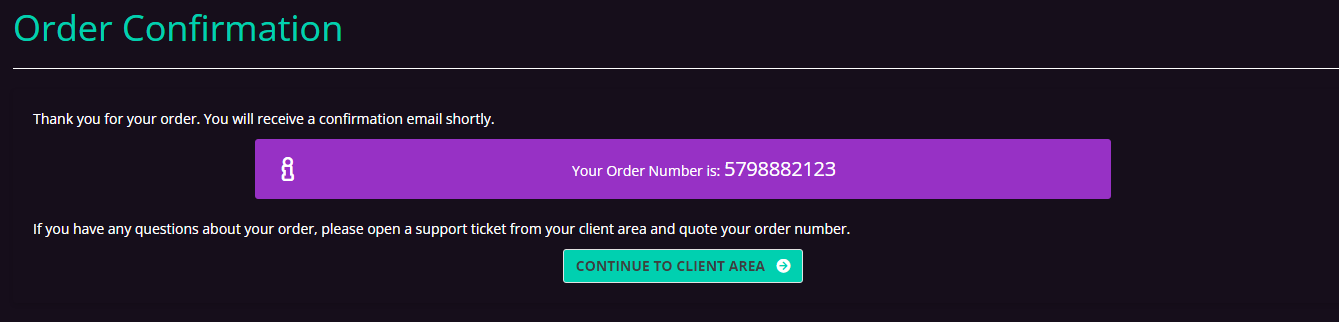
- Click "Continue to Client Area"
- It may take a few minutes for your service to become activated, refresh the screen after 5 minutes if this is the case.
- Once your Product is Active you can start to build your site.
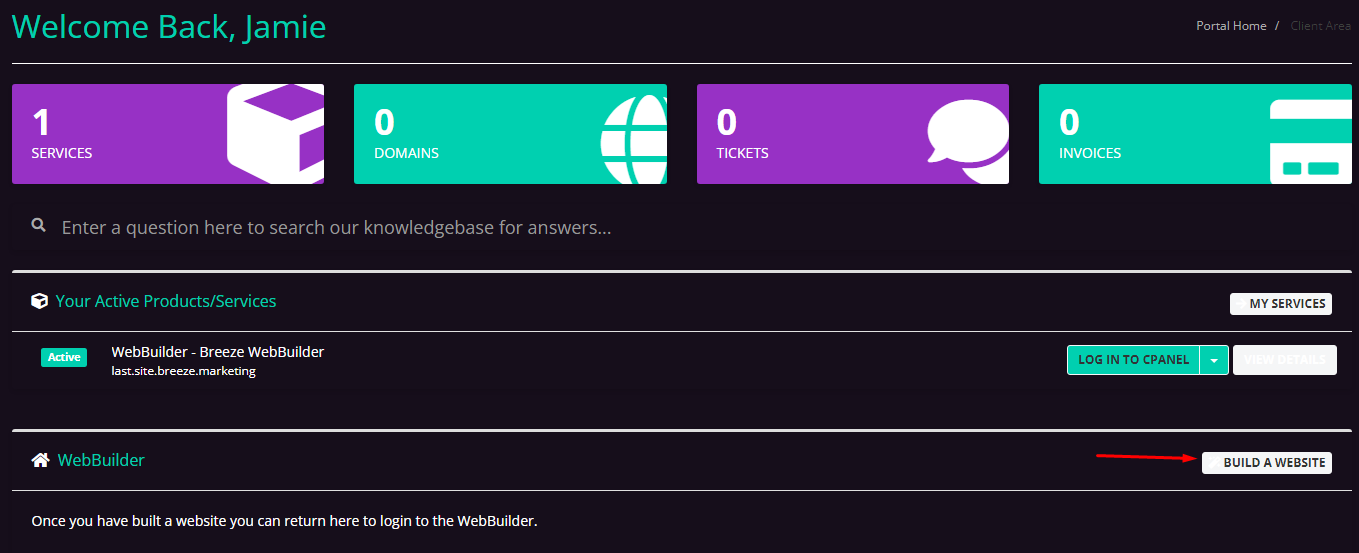
- Click Build a Website
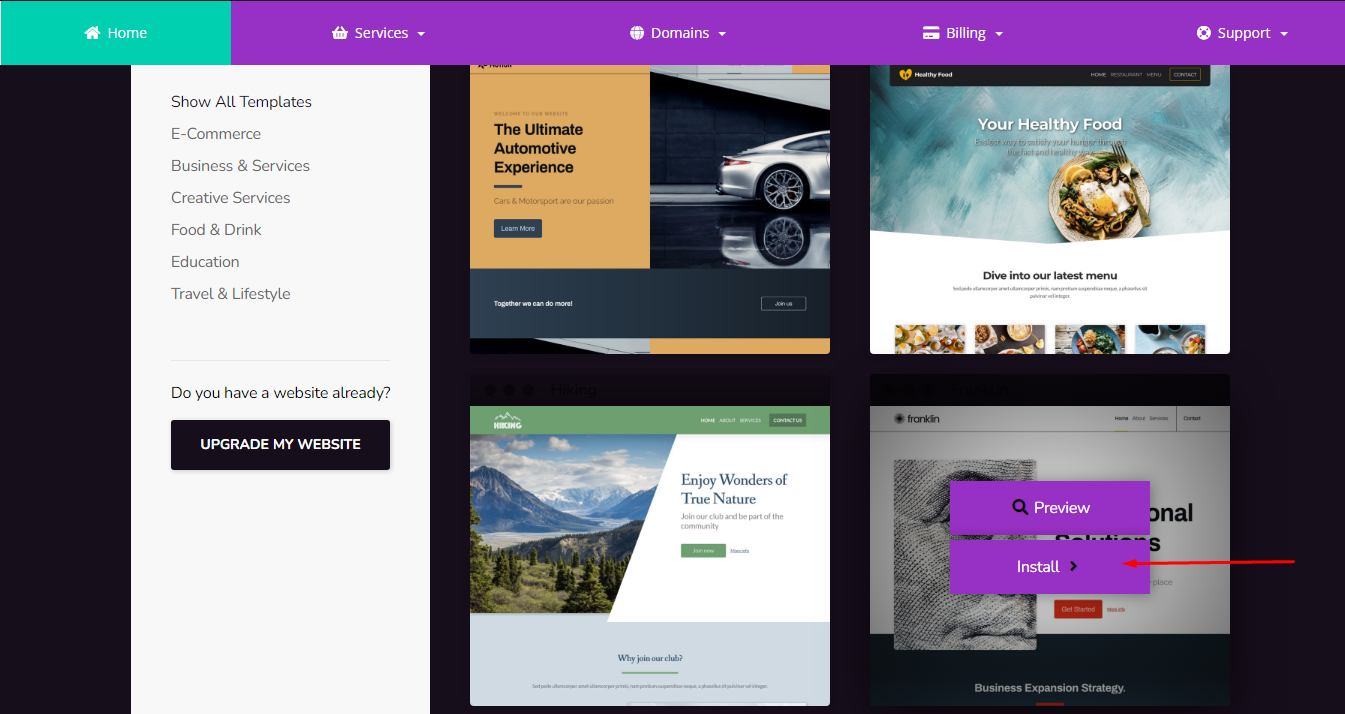
- Choose from one of our templates to get started, once you find one, hover over it and click Install.
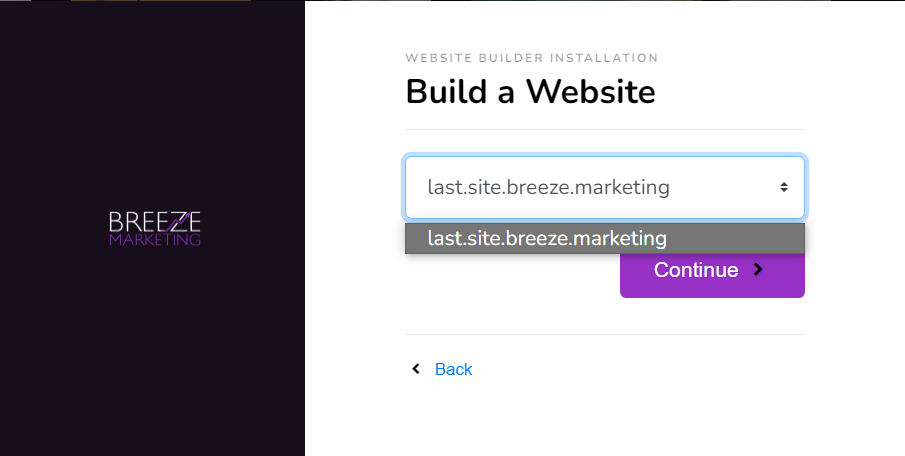
- You will then choose where to build your site, if you only have the one product you will only see one option.
- Press Continue.
- Enter your Email Address.
- You can also choose to install the website in a dictionary on your website (for example www.mysite.co.nz/newsite) We recommend leaving this option as it cannot be changed later.
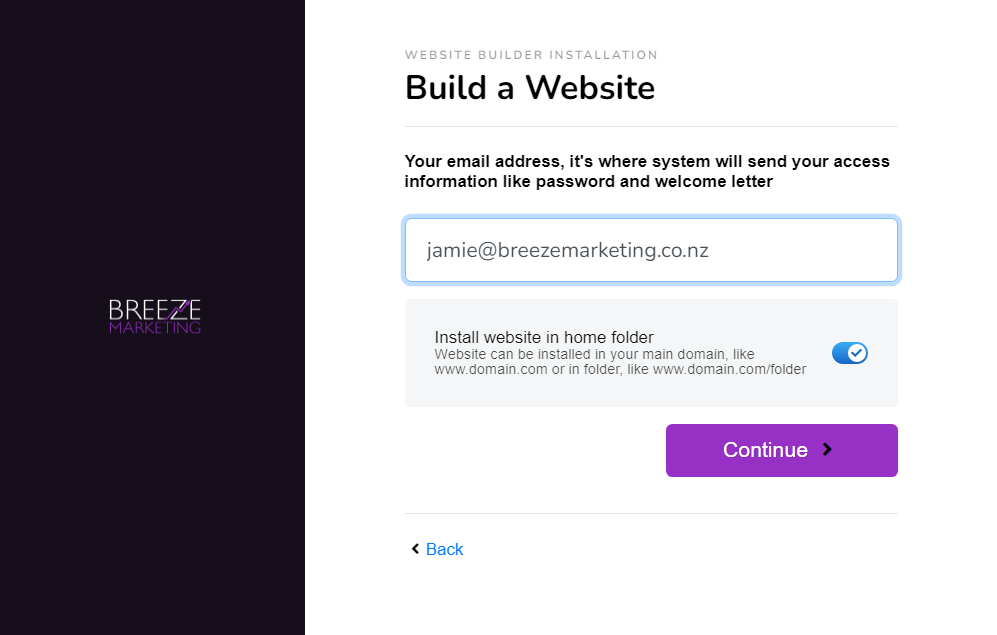
- Click Continue, the website will install, this should only take a minute or two.
- Now you're ready to build your website!
