
What is Two-Factor Authentication (2FA)?
Two-Factor Authentication (2FA) adds a critical layer of defense to your website. Instead of relying solely on a password (which can be stolen, guessed, or leaked in data breaches), 2FA requires two pieces of evidence before granting access to your administrator dashboard:
- Something you know: Your WordPress Username & Password.
- Something you have: A temporary, single-use 6-digit verification code sent to your email or generated on your smartphone.
How 2FA Works on Login
Step 1: Enter Your Credentials
Go to your website’s login page as normal and enter your Username and Password.
Step 2: Receive Your 6-Digit Code (Email Standard)
- By default, a secure 6-digit verification code is immediately emailed to your registered email address.
- The code remains valid for 10 minutes.
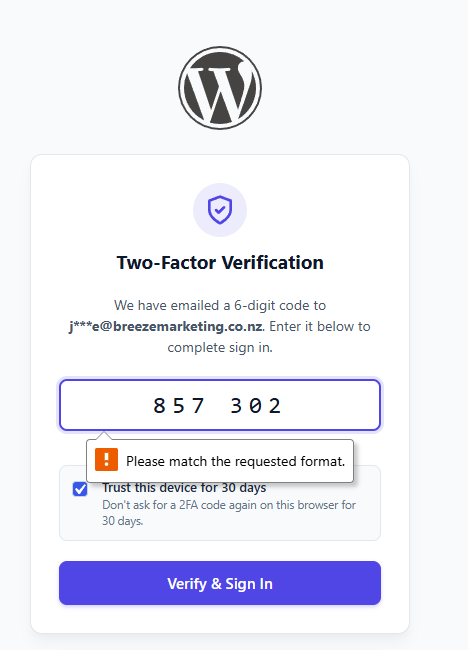
Step 3: Enter Code & Remember Your Device
- Check your email inbox for the subject:
[Your Site] Your Login Verification Code: XXXXXX. - Type the 6 digits into the verification field.
- Trust this device for 30 days: Keep this box checked if you are on your personal computer or work laptop. You won't be asked for a 2FA code again on this browser for the next 30 days!
- Click Verify & Sign In.
How to Set Up an Authenticator App (Optional)
If you prefer using an app on your smartphone (like Google Authenticator or Microsoft Authenticator) instead of waiting for emails, you can easily link one in your user profile:
Step 1: Download an Authenticator App
If you don't already have one installed on your phone, download one of the recommended apps below.
Step 2: Open Your WordPress Profile
- Log into your WordPress admin dashboard.
- In the left-hand sidebar, navigate to Users > Profile (or click your avatar/name in the top-right corner).
- Scroll down to the Two-Factor Authentication (2FA) section.
Step 3: Scan the QR Code
- Open your authenticator app on your phone.
- Tap the + (Add Account) button and select Scan QR Code.
- Point your camera at the QR code displayed on your screen. (If you cannot scan, you can manually type the displayed Secret Key).
Step 4: Verify & Activate
- Your app will generate a rolling 6-digit code.
- Enter this 6-digit code into the "Verify & Activate Authenticator App" field on your WordPress profile.
- Scroll to the bottom of the page and click Update Profile.
- You will now see the badge: "Authenticator App Connected"!
Where to Get Authenticator Apps
All of the following apps are free, secure, and fully compatible:
| App Name | Platform | Official Download Links | Best For |
|---|---|---|---|
| Google Authenticator | iOS & Android | • Apple App Store • Google Play Store |
Simple, lightweight, backed up to Google Account |
| Microsoft Authenticator | iOS & Android | • Apple App Store • Google Play Store |
Great for Outlook / Microsoft 365 users |
| Twilio Authy | iOS & Android | • Apple App Store • Google Play Store |
Multi-device cloud sync |
| Bitwarden / 1Password | All Platforms | • Bitwarden • 1Password |
Built directly into your password manager |
Switching Between 2FA Methods
If you have an Authenticator App configured:
- You can switch your preferred default method in Users > Profile (Email Code vs Authenticator App).
- On the login screen, you can toggle at any time by clicking "Use Authenticator App instead" or "Send a verification code to my email instead".
Managing Trusted Devices & Security FAQs
How do I revoke trusted devices if I lost my laptop or used a public computer?
- Go to Users > Profile.
- Under Trusted Devices (30 Days), check the box: "Revoke all trusted devices".
- Click Update Profile.
- All active 30-day session cookies across all browsers will be immediately invalidated, requiring 2FA on the next login.
What if I didn't receive the email code?
- Check your Spam / Junk or Promotions folder.
- Wait for the 60-second cooldown timer on the login screen to finish and click "Didn't receive a code? Resend Email".
- Ensure your WordPress admin email address under Users > Profile is spelled correctly.
